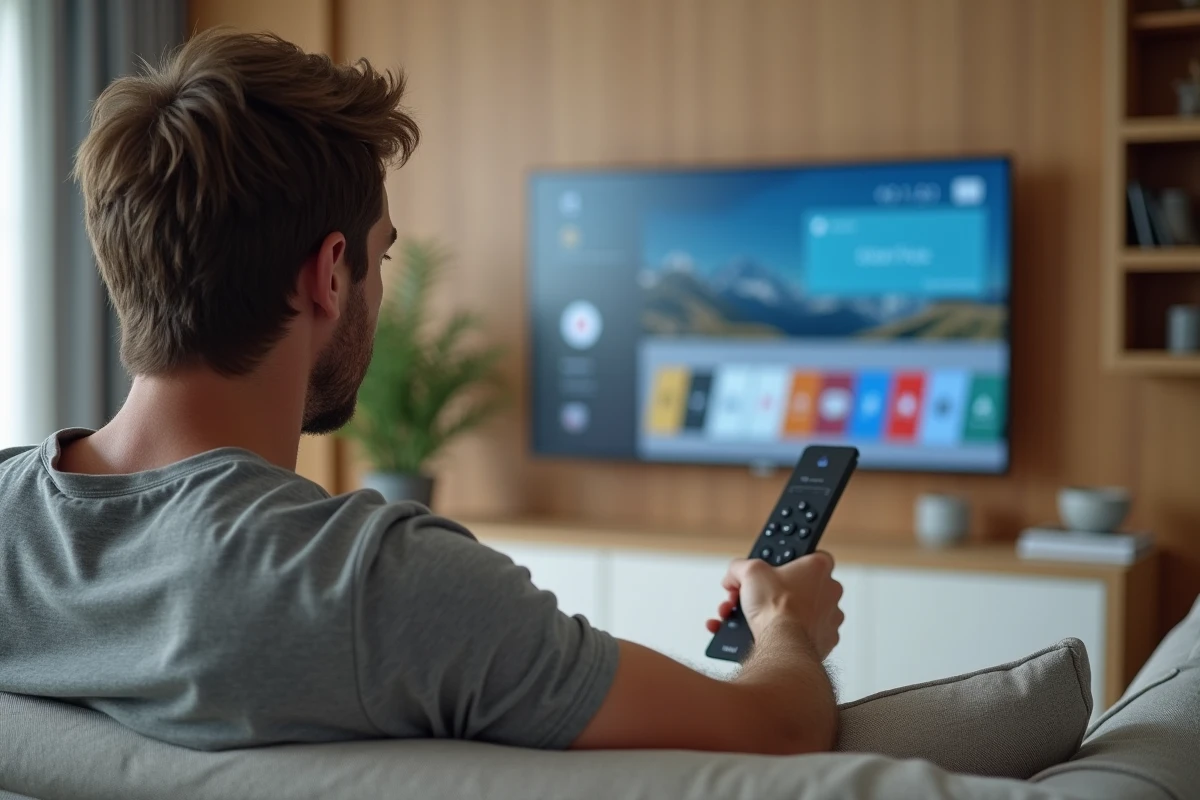
Your LG Smart TV displays a beautiful image, you have Netflix, Disney+, and a few other apps. Then you look for a specific service, a sports app or an IPTV player, and there’s nothing. The Google Play Store, which you use on your Android phone, is nowhere to be found. This is not a bug: it’s a limitation related to your TV’s operating system.
WebOS and Android TV: two systems that are completely different
Before looking for a solution, it’s important to understand why the Play Store is absent. LG TVs run on WebOS, a closed system developed by LG. This system has its own app store, the LG Content Store, and does not share anything with the Android ecosystem.
The Google Play Store is designed for devices certified for Android TV or Google TV. It comes pre-installed on Sony, TCL, or Philips TVs equipped with these systems. On an LG TV running WebOS, the Play Store simply cannot function natively.
Online guides that suggest downloading an APK file of the Play Store and installing it directly on WebOS are misleading. An Android APK file does not run on WebOS, just as Windows software does not run on macOS. The two environments are incompatible at the code level.
For those who want to delve deeper into the procedure and its limitations, a detailed guide explains how to install the Play Store on an LG WebOS TV, presenting each step and the technical dead ends to be aware of.
LG Content Store: what the official store really offers
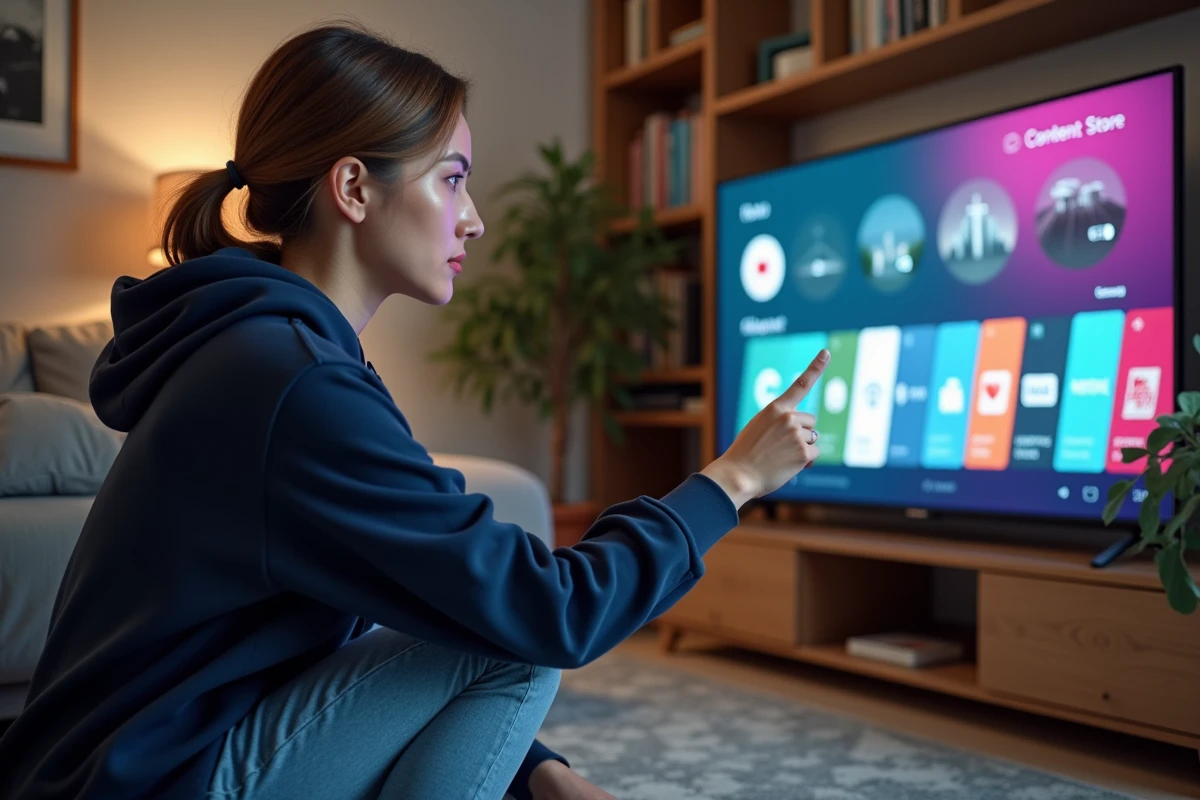
The LG Content Store remains the only native way to add apps to your LG TV. You access it by pressing the Home button on the remote, then navigating to the “Apps” section.
The catalog covers major streaming names (Netflix, Prime Video, Apple TV+, myCanal) and a few utilities. However, the selection remains limited compared to the Android TV Play Store.
- Niche applications (alternative IPTV players, home automation services, indie games) are often absent from the LG catalog
- Some applications available on Android TV arrive on WebOS with several months of delay, or never
- LG solely decides which applications are included in its store, with no option for the user to load an external app
Have you ever searched for a specific app only to find it missing from the Content Store? This is the most common frustration among LG TV owners, and it’s exactly what drives the search for the Play Store.
Android TV or Google TV box: the real solution to access the Play Store
The reliable method to get the Play Store on your LG TV is to connect an external box running Android TV or Google TV. The TV then serves as a screen, while the box manages the interface and applications.
Which devices to choose
Several options are available depending on your budget and needs:
- The Chromecast with Google TV offers a smooth interface and full access to the Play Store, at a moderate price
- The Nvidia Shield TV remains the benchmark for demanding users, with a powerful processor suitable for gaming and 4K streaming
- Xiaomi Mi Box devices or Amazon Fire TV sticks (with some tweaks) also provide access to the Play Store
Connect the box to an HDMI port on your LG TV, select the corresponding HDMI source, and you’ll have full access to the Play Store. All Android TV applications become available: Kodi, VLC, Smart IPTV, Plex, and thousands more.
Setup in just a few minutes
The setup requires no technical skills. Connect the box to your home Wi-Fi, sign in with your Google account, and the Play Store appears. Your app purchases and existing subscriptions are automatically synchronized.
A often overlooked point: the remote control of the box replaces that of the TV for navigation. Some boxes like the Nvidia Shield also allow you to control the volume and power of the TV via HDMI-CEC, which avoids juggling between two remotes.
Sideloading APKs on WebOS: why this route is a dead end
Tutorials circulate on forums and YouTube videos, promising to install APKs on your LG TV via a USB stick. This method relies on the developer mode of WebOS, which theoretically allows loading files onto the system.
In practice, Android APKs are incompatible with the architecture of WebOS. The developer mode allows the installation of WebOS applications specifically compiled for this system, not Android files. Even if you manage to copy an APK to the TV, the system won’t know how to open or execute it.
The few manipulations that work partially require rooting the TV, voiding the LG warranty, and exposing the system to security vulnerabilities. For the vast majority of users, the risk-benefit ratio is unfavorable.
What choice to make based on your usage
If your LG TV satisfies you for Netflix, YouTube, and the main services, the LG Content Store is sufficient. WebOS offers fast navigation and good image management, two qualities that justify keeping this system as the main interface.
If you need applications absent from the LG catalog, a Google TV box connected via HDMI transforms your TV into an open platform for just a few dozen euros. This is the only stable and risk-free method to access the Play Store on an LG screen.
LG TVs running WebOS remain among the best on the market for display quality. Their limitation lies solely on the software side, and a small external box is enough to bridge the gap without sacrificing the advantages of your television.